Hexawise recent updates
Hexawise recent updates
Learning Center update
We have "refreshed" the content & format of the first introductory article: What Is Hexawise and How Will It Help Me?
Error when sharing a just created, brand new plan to an existing project
These are the kind of pairwise ideas that rarely end up in test plans, but are regular sources of defects in the real world.
Learning Center update
We get quite a few questions about applying Hexawise to different types of testing, so here is the guidance related to data validation: How to perform request/response validation with Hexawise
Special characters in notes could prevent full display of the note
Using certain special characters in the body of a test plan note could cause the display of the note to be truncated.
Automate: Comment only lines in Gherkin
If you have lines in your Gherkin test scripts that contain only comments (lines that start with #) they are now included in Automate's Gherkin preview panel, and in script exports. Inline comments were always included, but comment only lines were not prior to this improvement.
Handling of long test plan names
Longer test plan names used to get truncated at the end of them in various places in the UI. This could make it hard to tell similarly named plans apart, since often the beginning of the plan name will be the same and the distinguishing part of the name will be at the end. In some places this was further hindered by there not being a tooltip on hover with the full, non-truncated plan name.
We audited everywhere plan names occur in the UI and switched to using middle truncation so the start and end of very long plan names are visible. We also ensured everywhere we truncate long plan names includes a tooltip with the full name on hover.
Warning in bulk edit for losing value expansions
There used to be a warning when making parameter / parameter value edits using the bulk editor that would cause you to lose value expansions you defined. There was a regression that caused these warnings to no longer be provided. They are back.
Learning Center content
We get quite a few questions about applying Hexawise to different types of testing, so here is the guidance related to APIs: How to test APIs with Hexawise
Automate: Export scripts to Robot Framework
This export selection was not working. It now is.
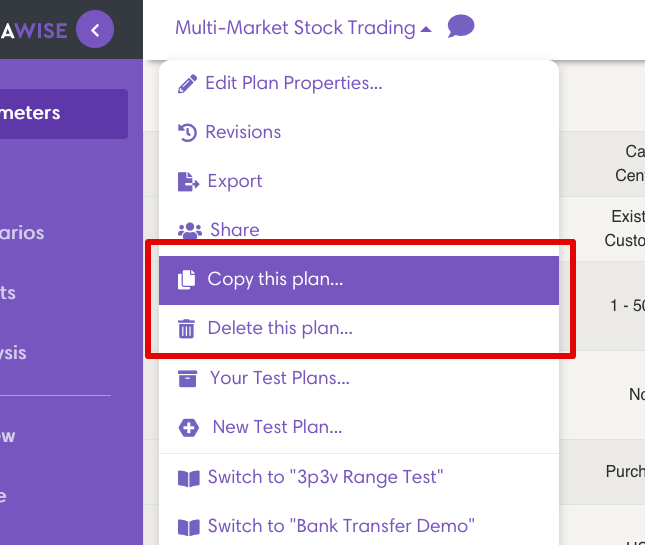
Copy and delete the open test plan
To copy or delete the test plan you have open, you used to have to exit the plan and go to the manage plans view. Now there's a menu option to copy or delete the current plan, which should save a lot of clicks.
Automate: Ability to delete your only Automate script
Before you could not delete the last remaining Automate script in a test plan, but sometimes this is desirable. Now you can.
Automate: Gherkin sample script
We made it more apparent when you just have initial, unsaved, sample Gherkin text in Hexawise Automate using a yellow explainer bar.
Support documentation and channels for learning more about Hexawise
We are continuously expanding our support documentation and channels for learning more about Hexawise.
Some of the more recent articles include:
- Toolchain integration with the example of Jira and Xray
- Guidance around Advanced Constraints
- Guidance around Expected Results
- Cross-industry success stories
We encourage you to keep track of these Recent Updates, and engage with us on LinkedIn as well.
Special character encoding in bulk edit
Certain special characters would show up as Unicode encoded, rather than as the Unicode character, when editing parameters using bulk edit. This is now resolved.
Automate: Keyboard and mouse interaction with parameter value selection
When entering a { for parameter value selection in a Gherkin Automate script, if you then interacted with the resulting parameter name auto-complete drop down using the mouse, rather than using the keyboard, you would't get a subsequent parameter value auto-complete drop down after selecting the parameter. Now you do with either data entry method.
Hexawise Foundations Certification
We strongly encourage you to invest an hour in earning a Hexawise Foundations certification.
To use Hexawise well, you need to understand, and apply a few important test design concepts and principles. The Hexawise Foundations certification course is the fastest way to learn these skills.
The course is available to all Hexawise users after you login to Hexawise. Click on the "Certification" tab in the bottom right of the post-login landing page, or on any screen you can click the course icon in the top right of your logged in Hexawise screen, to the left of your name.
Forced interactions import file, headers
The import of forced interactions from a file into a plan was sensitive to the formatting of the headers, and it should not be. This was resolved.
Performance for users with an extremely large number of plans
It won't be noticed by most people, but if you happen to have an extremely large number of plans (many hundreds) you'll notice a much snappier initial load of Hexawise.
Parameter order in dropdown of expected results of manual auto-scripts
The drop down order is now consistent with the order of the parameters in the plan, rather than alphabetical.
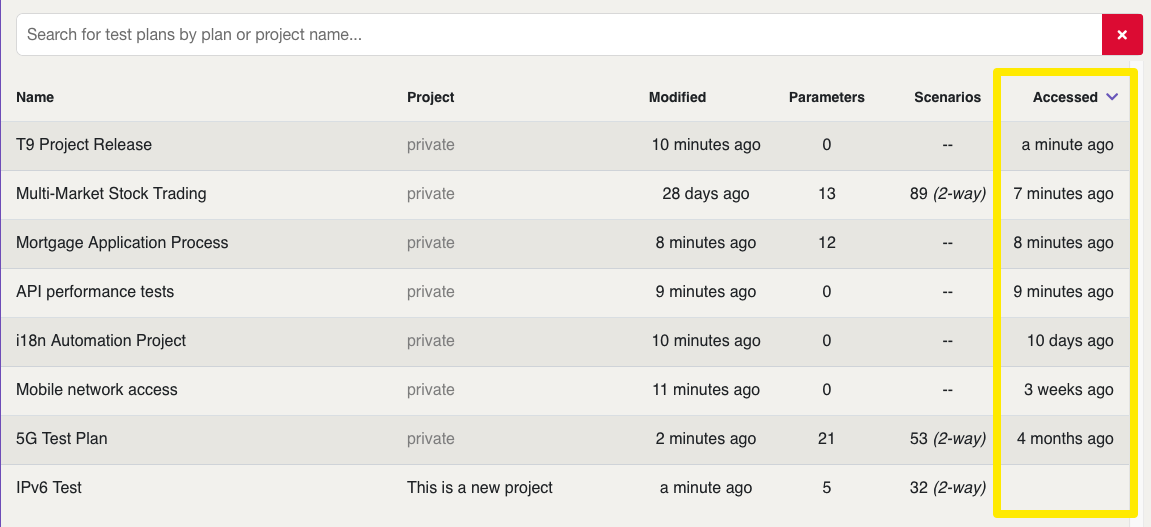
Display and sort by recently accessed plans
You can know see when you most recently accessed your test plans, and you can sort by the same.
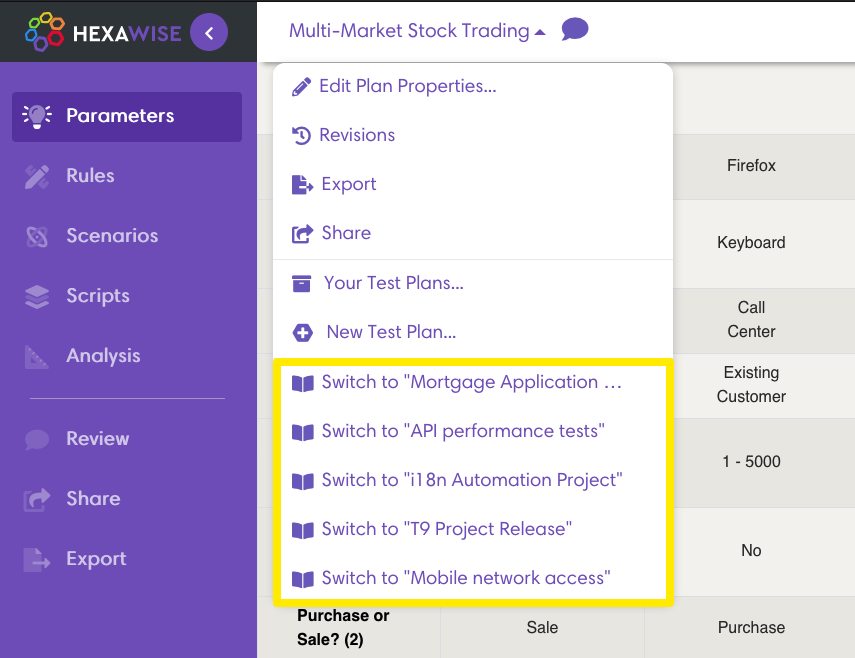
Fast plan switching
Your 5 most recently accessed test plans are now available under the test plan drop down when you are in a test plan. This enables you to quickly switch between them or open them in a new tab.
Clear manual auto-scripts
In the old UI, when you had more than 3 steps in your manual auto-scripts you had the option to start over and remove all the steps in a single bulk operation rather than deleting all the steps one-by-one. We lost this functionality in the new UI, but now it's back.
Frozen scenarios, bring back the blue ice!
In the old UI, frozen scenarios would be shown with an icy blue background in the table of scenarios. We lost the coloring in the new UI, but now it's back. Thank you to user Dorothy for pointing out this omission.
Description of mixed-strength scenarios in revisions
When describing the number of scenarios in mixed-strength tests, the revisions UI used the (internal) term, -1 rather than mixed-strength as the strength indicator.
Our internal CI / CD pipeline
We normally don't comment on these type of DevSecOps improvements here since they don't directly impact you as a user of the tool, but since we are all involved in the software development life-cycle in our respective teams, I thought it might be interesting to mention that we moved from a cloud-hosted Jenkins server and AWS CodeBuild as our CI/CD pipeline to GitHub Actions to power our CI/CD pipeline.
The benefit here is a bit over-determined, as a result of the move we have better pipeline performance, stability and reliability, and reduced costs.
As a potentially interesting addendum, "CI/CD pipeline" has become a generic term that is often used to describe just continuous integration, but here at Hexawise our pipeline is a full CI/CD pipeline and we do continuous deployment as well.